Guides and How-tos
Contact UsQuick Start Guide
1.
Start by downloading and installing the app on your device. Use these links or search for WirelessUSG in the app stores.


2.
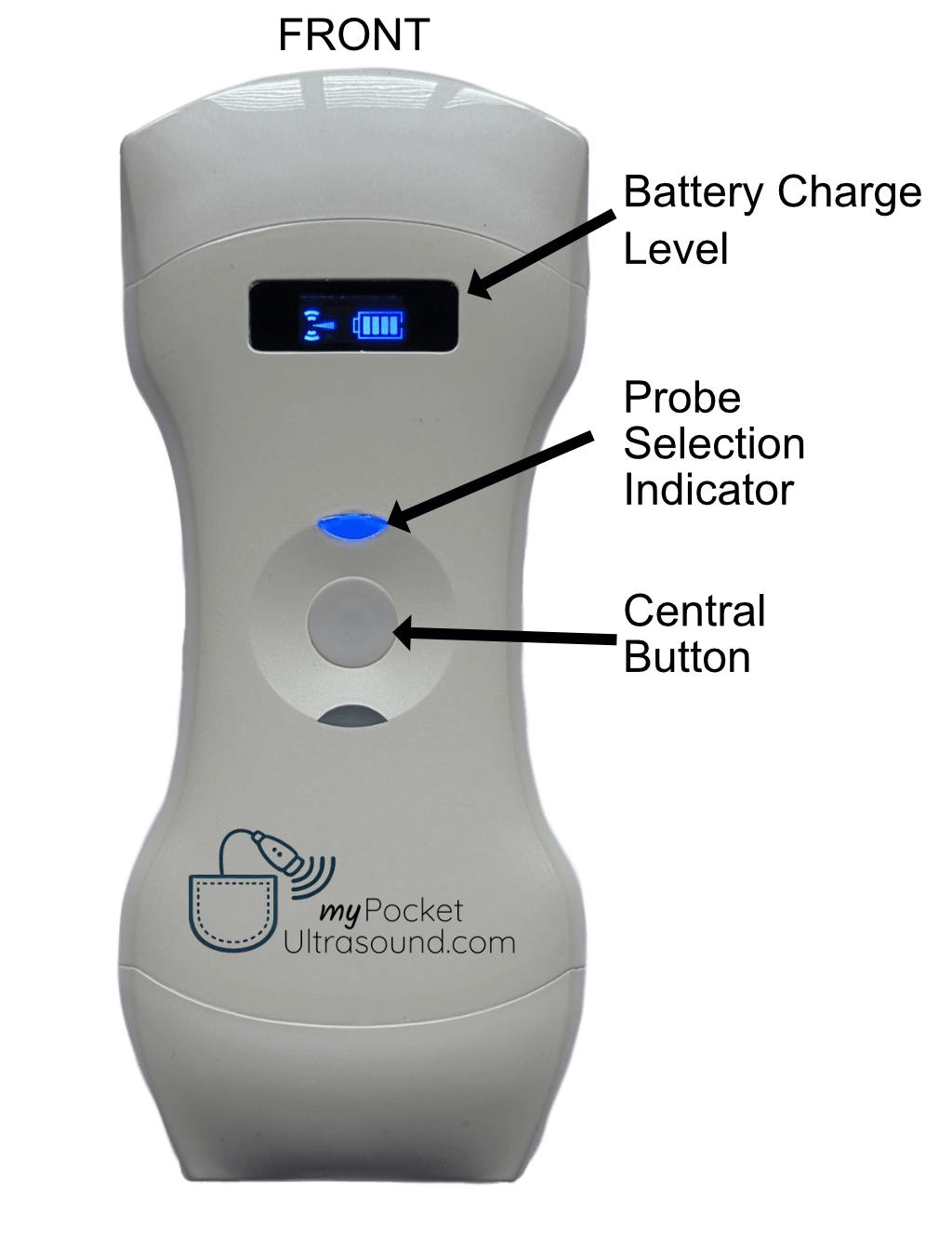
Turn on the probe using the central button. The battery charge indicator will light up. Check that the device is charged to at least 50%
3.
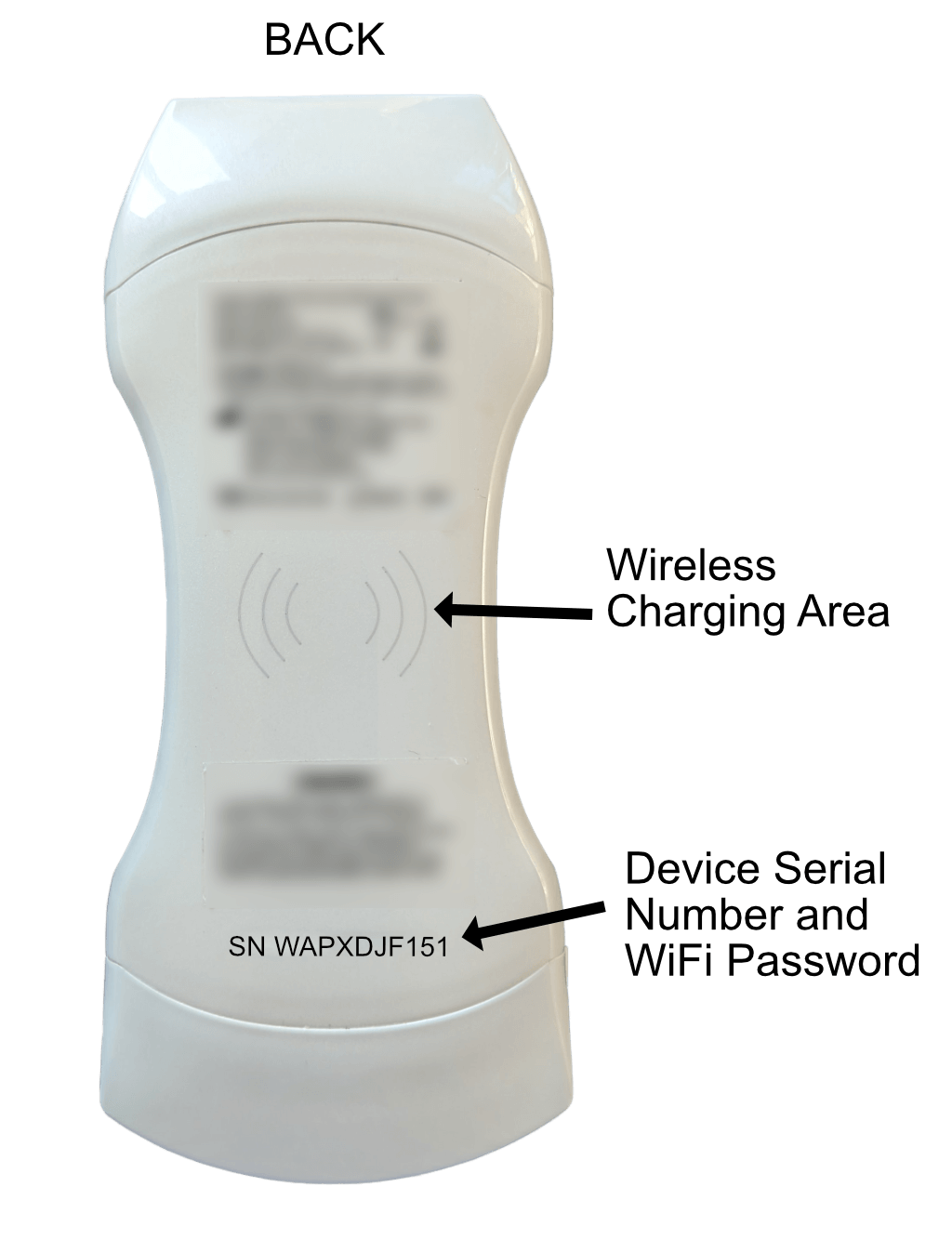
On your smartphone or tablet go to the WiFi settings page and find the ultrasound WiFi network which will be a random prefix followed by the last 7 characters of the device Serial Number printed on the back of the device.
For example SX-1CT GOXDJF151
4.
The WiFi password is the Serial Number characters after SN, all in lower case.
I.e. SN WAPXDJF151 becomes wapxdjf151 as the wifi password.
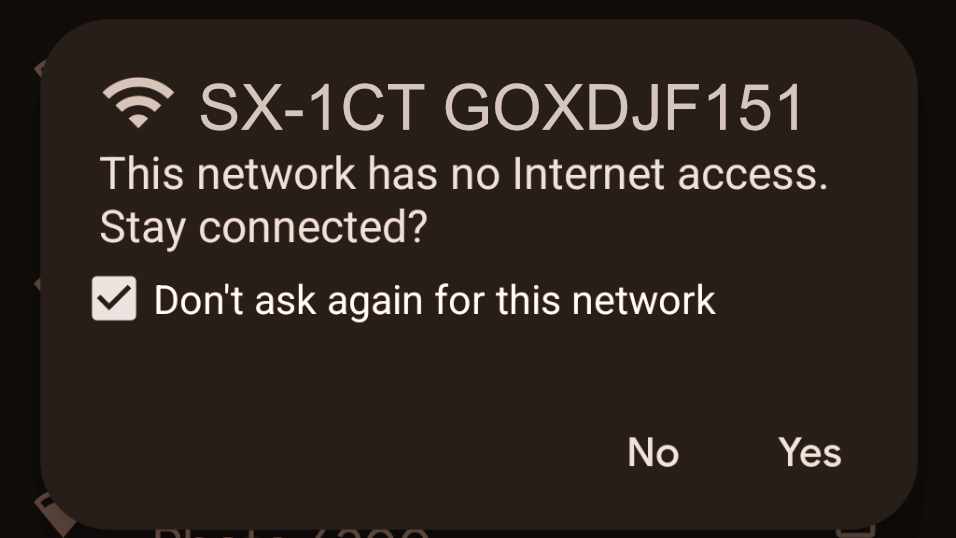
You may see a message warning that there is no internet access. It's important that you click YES, to remain connected to the ultrasound probe. Note that if you have a tablet with a SIM card in, there should be internet access simultaneously with the ultrasound connection. This can vary between devices and OS.
5.Open the Ultrasound App. The WiFi connection name should show in the top right side of the app.

Open the Ultrasound App. The WiFi connection name should show in the top right side of the app.
6.
By default the device starts with the curvilinear probe activated and in the freeze state. Either, click the Freeze button in the app or the central button on the device to start scanning.
Contact Us
Get in touch to arrange a demo or find out more